 Firekeeper
Firekeeper documentation
One terminal dashboard for your coding agents.
See which agents are working or need attention, read their latest replies, and check token usage. Firekeeper is free and open source: launch your agents as usual, then run firekeeper in another terminal.
Works with Claude Code, Codex, GitHub Copilot CLI, Kimi Code, OpenCode, Gemini CLI, and Cursor CLI. No Firekeeper account, server, or wrappers required.
First time here?
Install Firekeeper, find your first session, and learn the few keys you need to get started.
Install and find your first session →Already running agents?
See who needs attention, read the latest reply, and jump back to the terminal where the work is happening.
Learn the everyday workflow →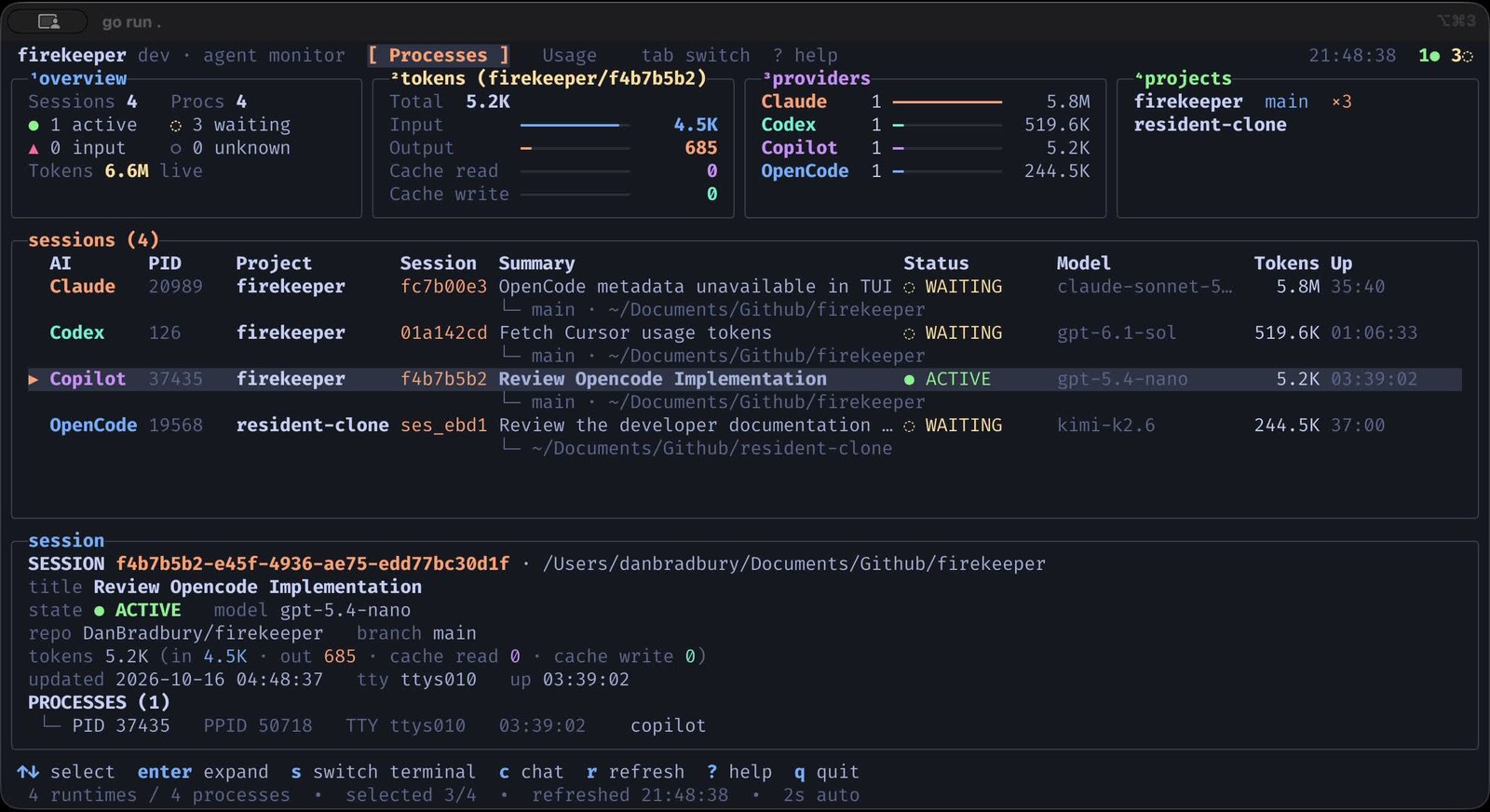
A dashboard, not a new way to launch agents
Firekeeper discovers Claude Code, Codex, GitHub Copilot CLI, Kimi Code, OpenCode, Gemini CLI, and Cursor CLI. Start them in their own terminals as usual. You do not need wrappers, a background service, or a dashboard account.
It reads local process information and provider session files without modifying them. Quitting Firekeeper leaves your agents running. It does not host terminal panes, keep remote sessions alive, or send messages to agents for you.
No transcript uploads from the terminal dashboard. Usage and update checks can contact provider services or GitHub. Sending transcripts to a server is a separate, explicit opt-in workflow. See what contacts the network.
Find your next step
Understand usage
Tell local token history apart from account limits, and browse past sessions.
Read the usage guide →Keyboard shortcuts
Navigation, chat history, terminal switching, and refresh controls in one place.
Find a shortcut →Something missing?
Check session discovery, terminal permissions, provider paths, and incomplete totals.
Troubleshoot Firekeeper →Go beyond the terminal
Explore optional snapshots, exports, and redacted reporting. None is needed for the live dashboard.
Read the reporting reference →